- 1
Add your track files
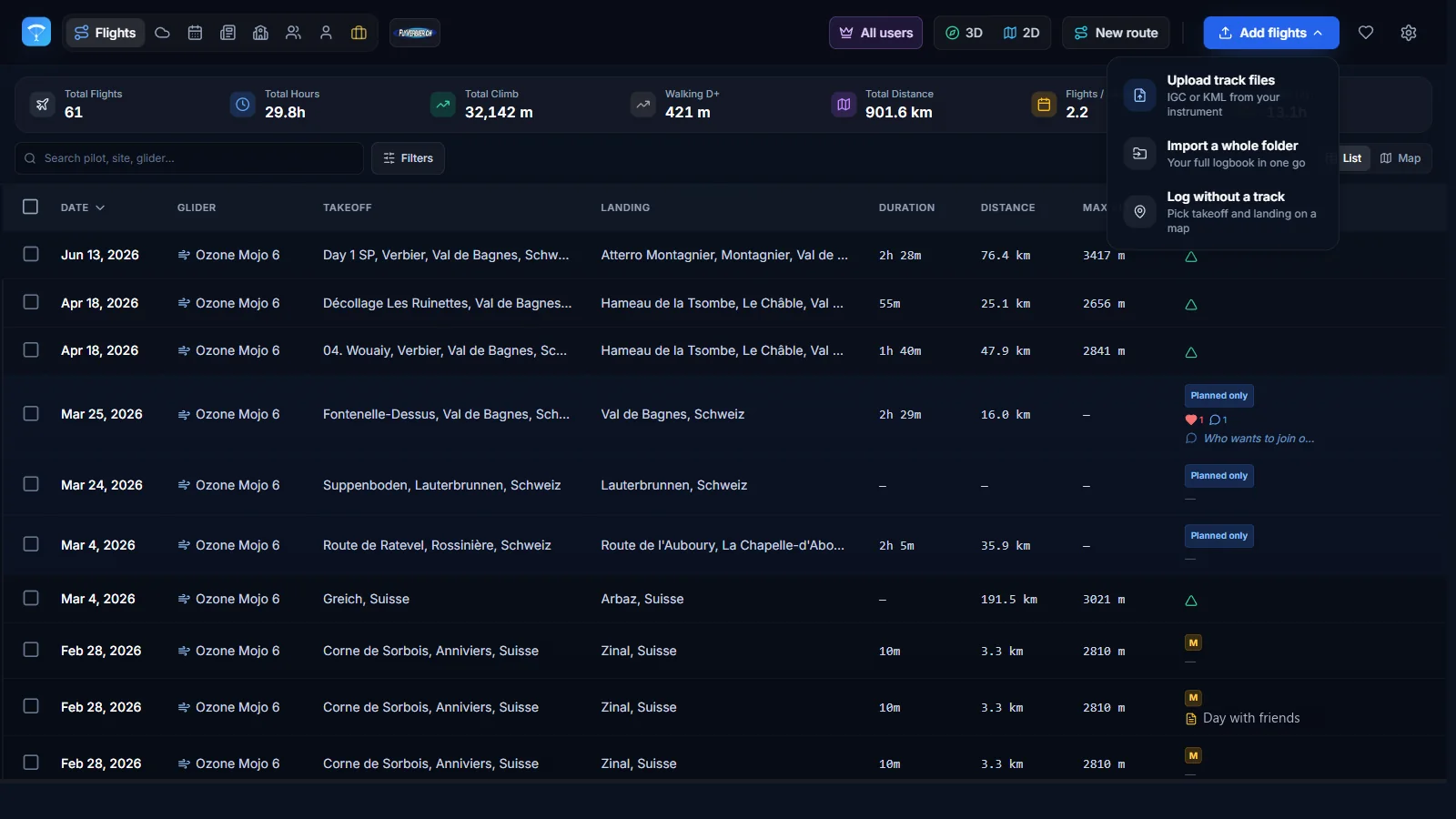
Open My Flights and click Add flights in the top right corner, then choose Upload track files.
Select one or several IGC, GPX or KML files from your computer or phone. They are processed in the background, so you can keep working while they upload.
You can drop a whole season of IGC files at once: XCviewer detects duplicates for you.
- 2
Find the flight in your logbook
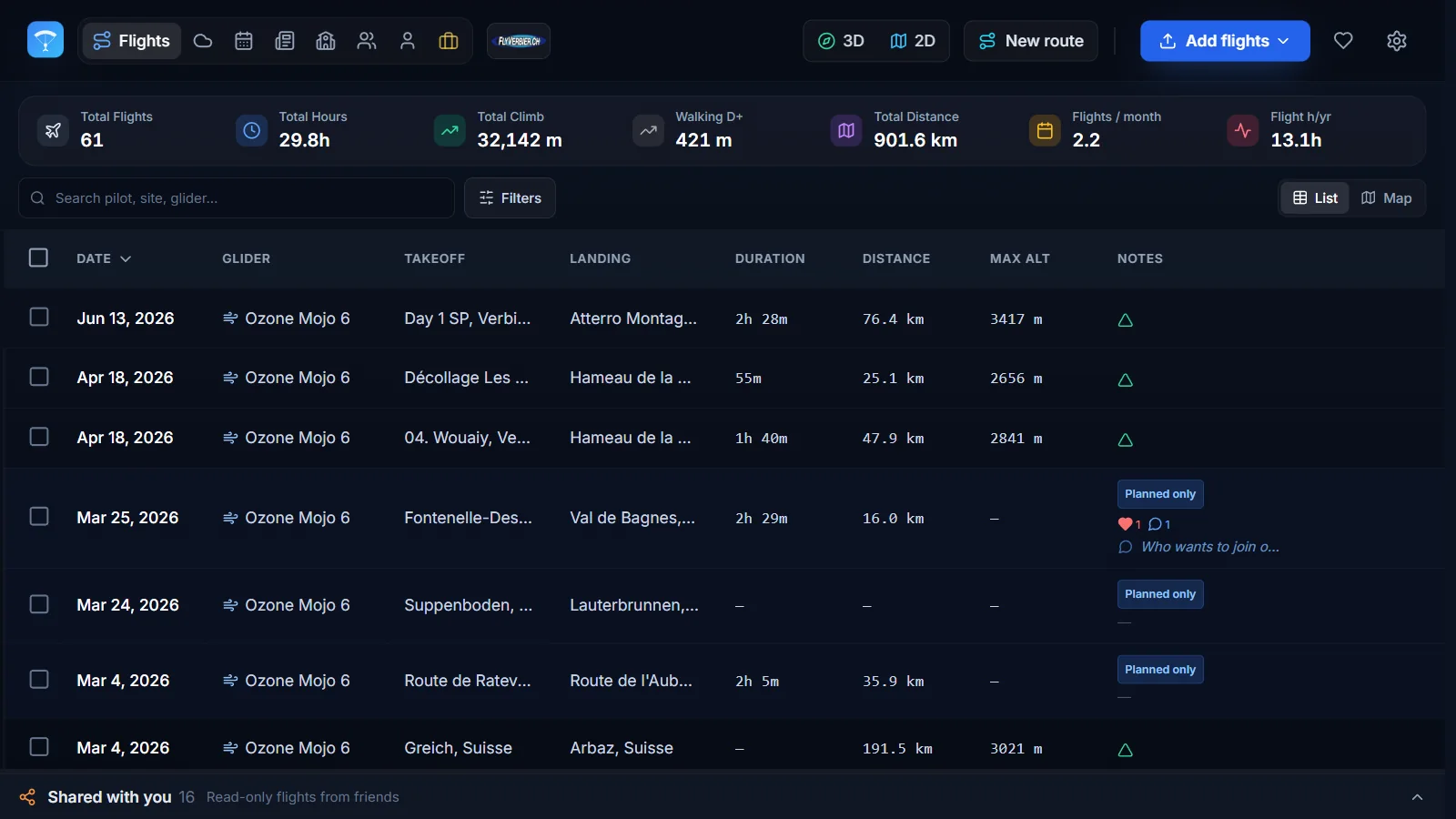
Every upload lands in your logbook with its date, site, glider, duration, distance and maximum altitude.
Use the search field and the filters to find a flight, or sort the columns to see your longest and highest flights first.
- 3
Open it in 3D
Hover a flight and click Open in 3D. The track is placed on high-resolution satellite imagery and real terrain.
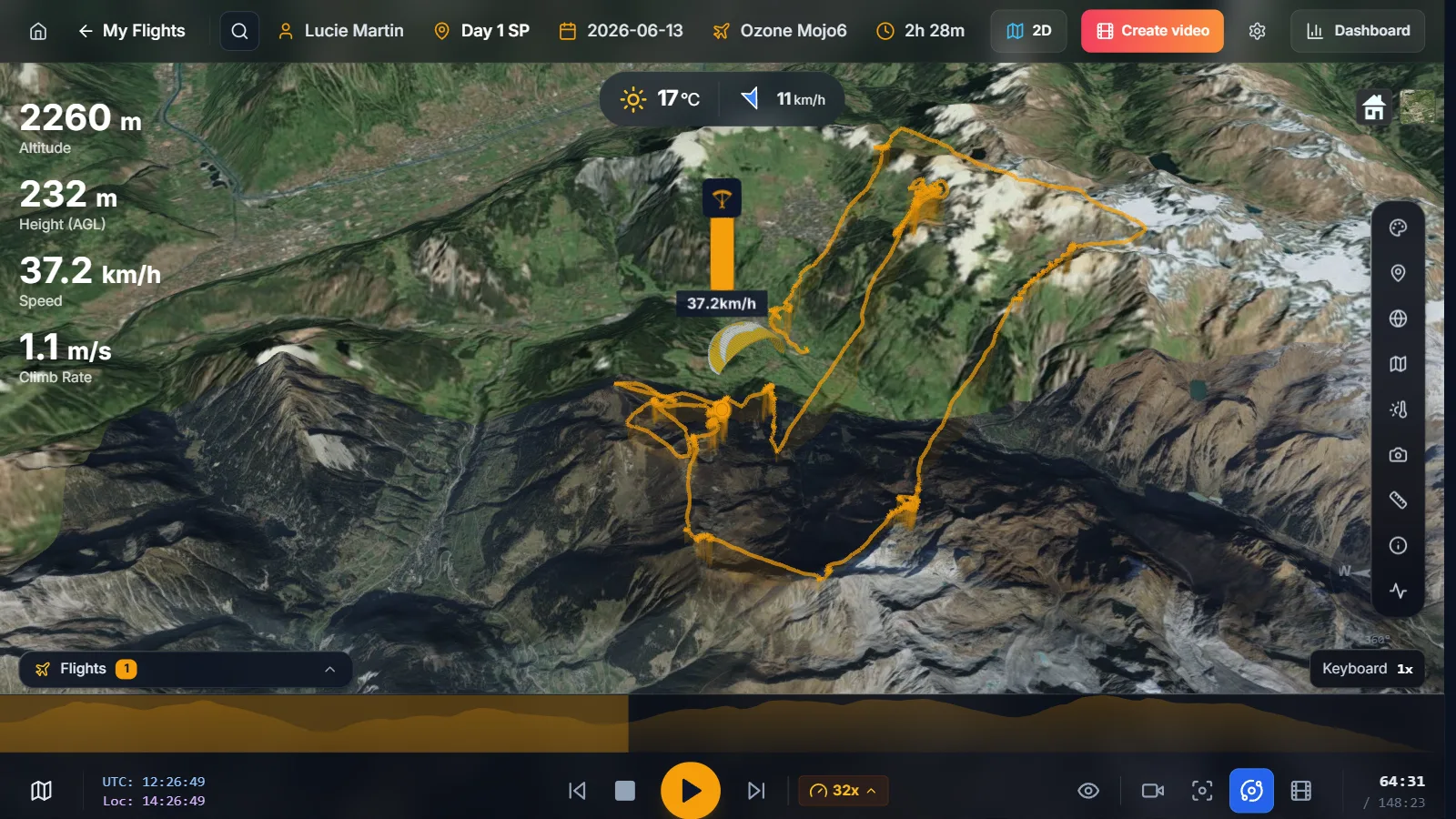
Drag to orbit, scroll to zoom and right-drag to tilt the camera. The live panel on the left shows altitude, height above ground, speed and climb rate.
- 4
Replay the flight
Press play in the bottom bar to replay the flight. Change the speed with the speed selector, or click anywhere on the altitude profile to jump to that moment.
Switch the camera mode to follow your glider, or keep a free camera to watch the whole flight unfold.
Use the arrow keys to step through the flight and the space bar to play or pause.